
Start from a template
Choose a ready-made site, change the words and pictures, and publish it, instead of starting from an empty page.
Before you start
- A vault56 account and a look at the start screen of Studio.
Steps
- On the Studio start screen, scroll down and open the tab Website templates. There are also tabs for app templates and game templates. Use Search templates or the category chips to narrow the list.
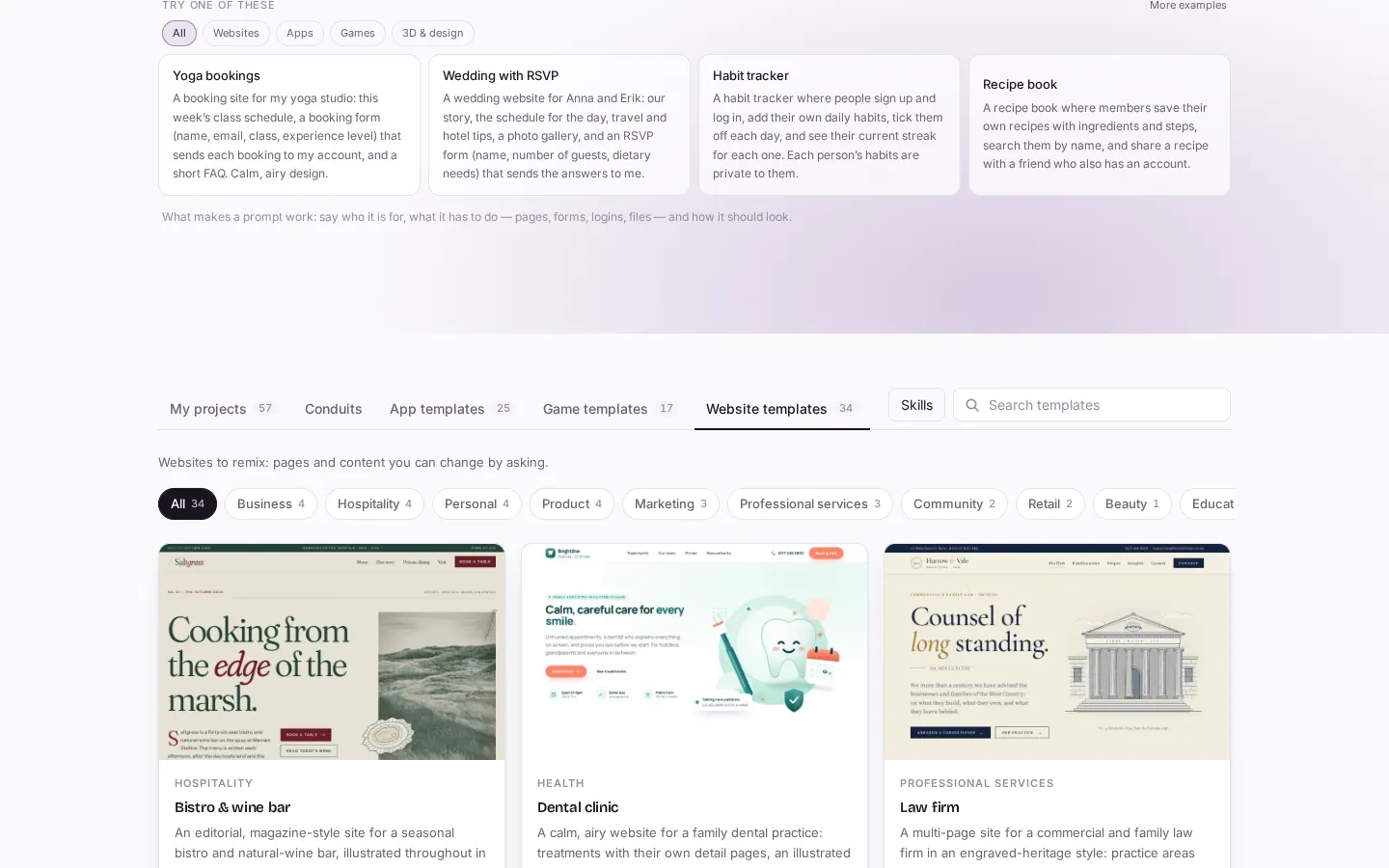
On the start screen, open the tab "Website templates". Each card shows a live picture, a category and a short description. You can also search with "Search templates". - Click a card. The details window shows a live preview, what the template sets up and what your package covers. Check the line under YOUR PACKAGE.
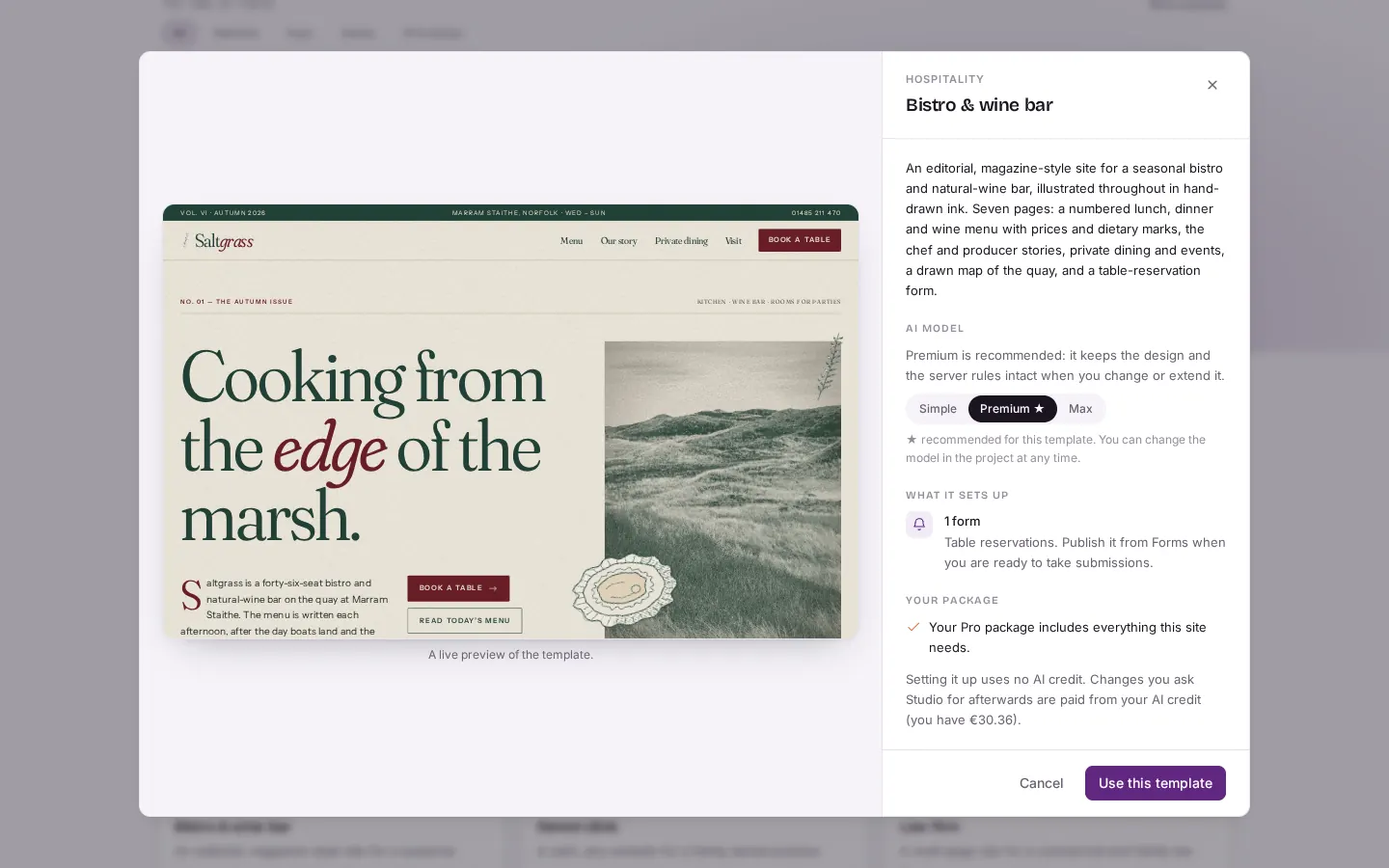
Click a card to open the details window. It shows a live preview and tells you "AI MODEL", "WHAT IT SETS UP" and "YOUR PACKAGE". The buttons are "Cancel" and "Use this template". - If you like, choose the AI model that will make your later changes: Simple, Premium or Max. The template recommends one for you.
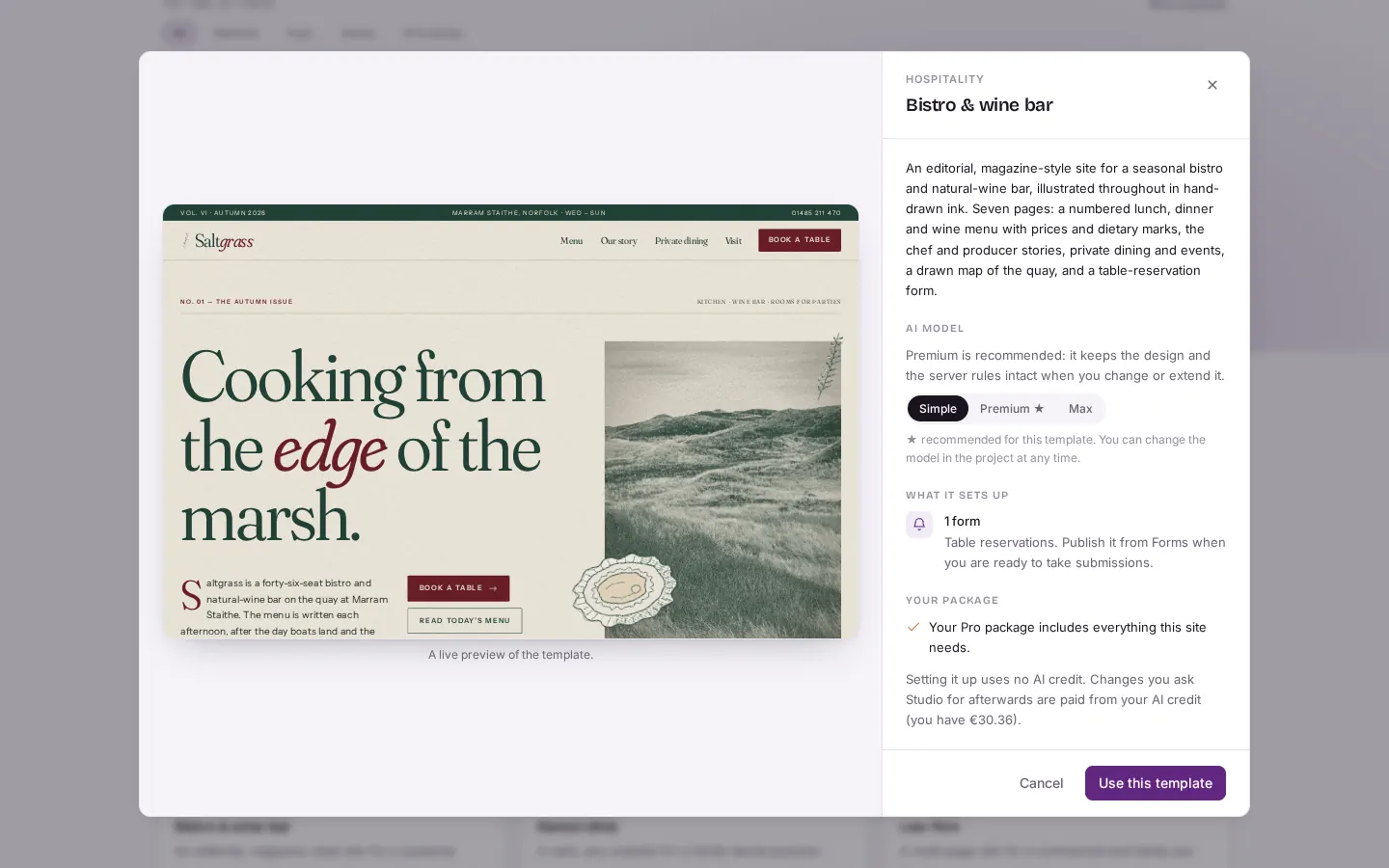
Choose the AI model for later changes: "Simple", "Premium" or "Max". The template suggests Premium, and here Simple is picked instead. - Press Use this template. The project opens ready, and Studio tells you what it set up. Try it in the preview, then tell Studio what to change.
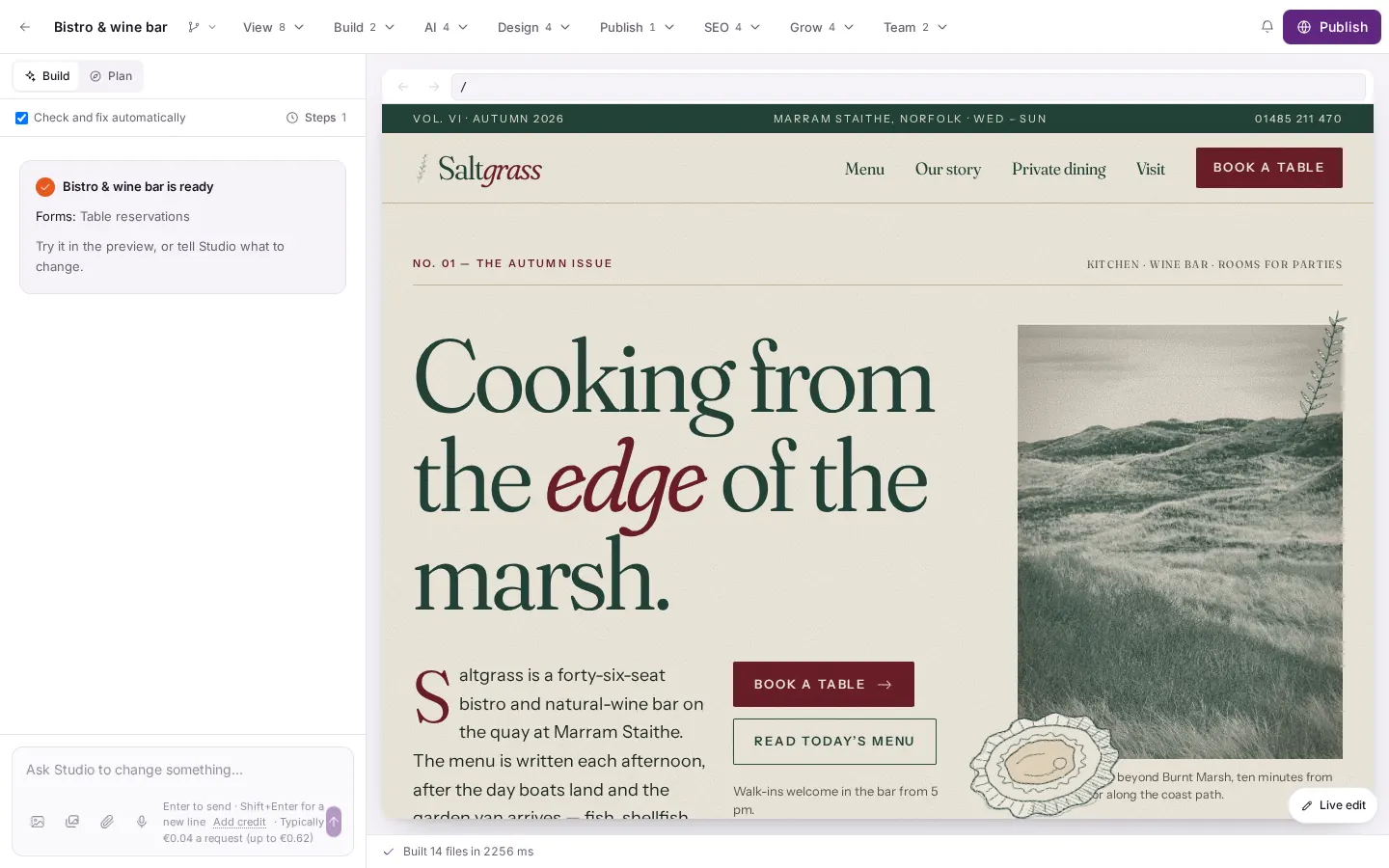
After "Use this template" the project opens ready to use. Studio says what it set up, here a table reservation form, and invites you to try it in the preview.
Good to know
- Setting up a template uses no AI credit.
- Your project is a full copy. You can change anything in it.
- Template names and descriptions are in English, whatever language you use.
- Premium costs about four times as much per later change as Simple. Simple is enough for many small edits.