
Change your app by chatting
Tell Studio what you want changed, or edit small things yourself, and go back to an earlier version whenever you like.
Before you start
- An app in Studio. If you have none yet, start with Create your first Studio app.
Steps
- Click the chat box at the bottom left and describe the change in plain words, for example "make the heading bigger and add an opening hours section".
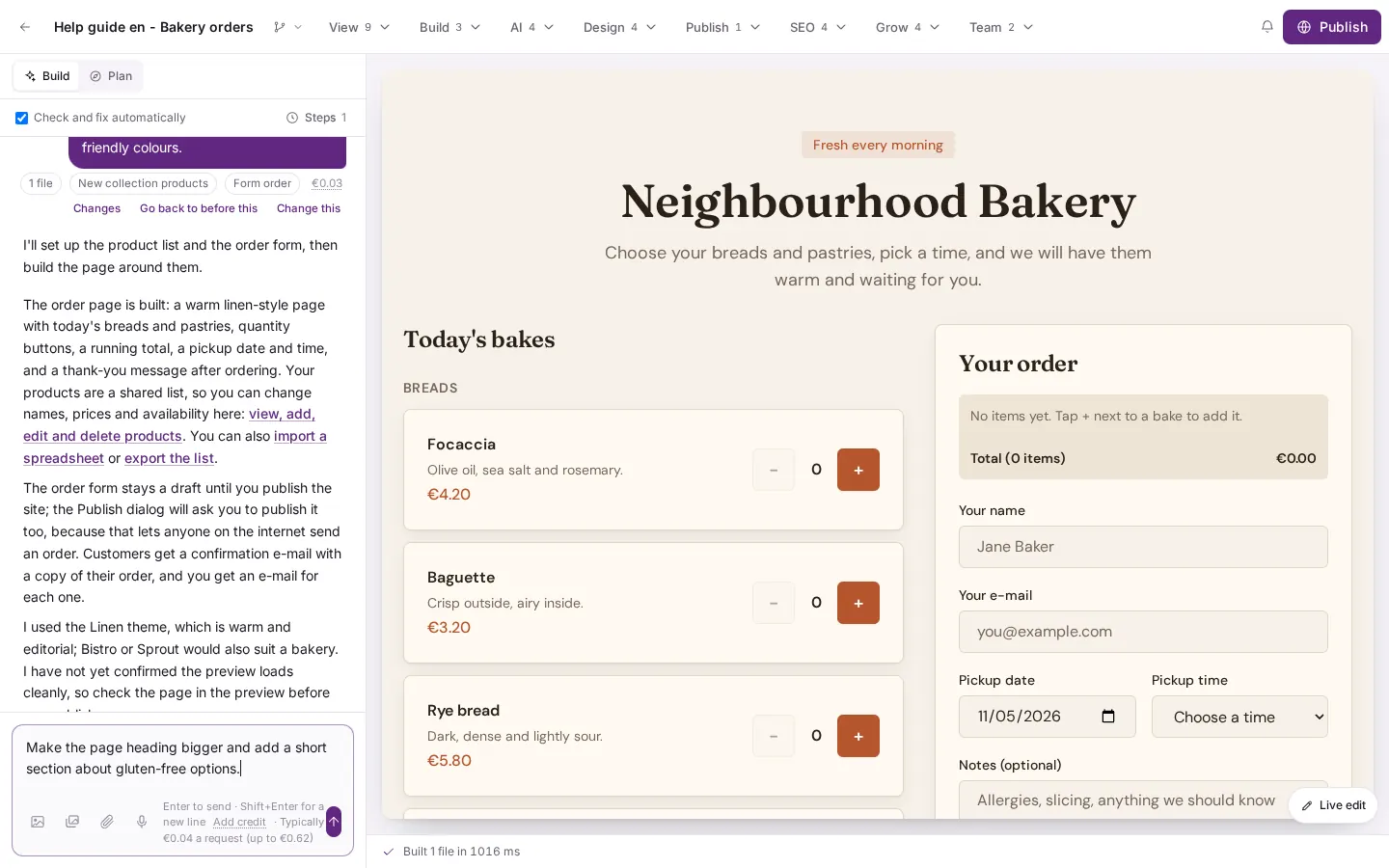
Type your change in the chat box at the bottom left. The box says "Ask Studio to change something…" and the hint reads "Enter to send · Shift+Enter for a new line". - Press Enter (or the round arrow button). Wait until the progress card is gone. The preview shows the change and the chat explains what was done.
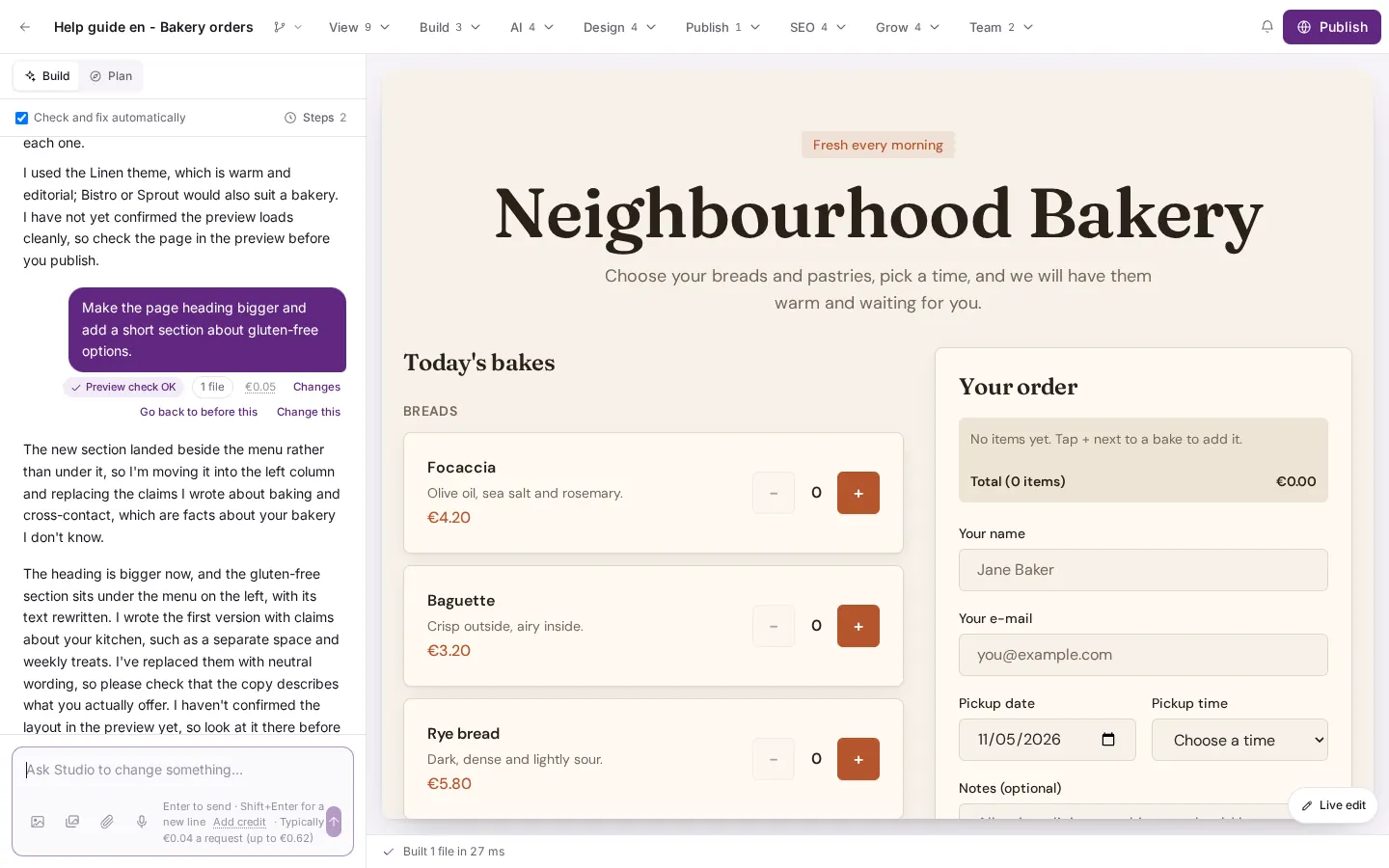
When the progress card is gone, the preview shows the change and the chat explains what was done. Under the chat box you can tick "Check and fix automatically". - For small edits without AI, open the View menu and choose Live edit. Click a part of the page and change its words, colours, size or spacing in the panel. It is free.
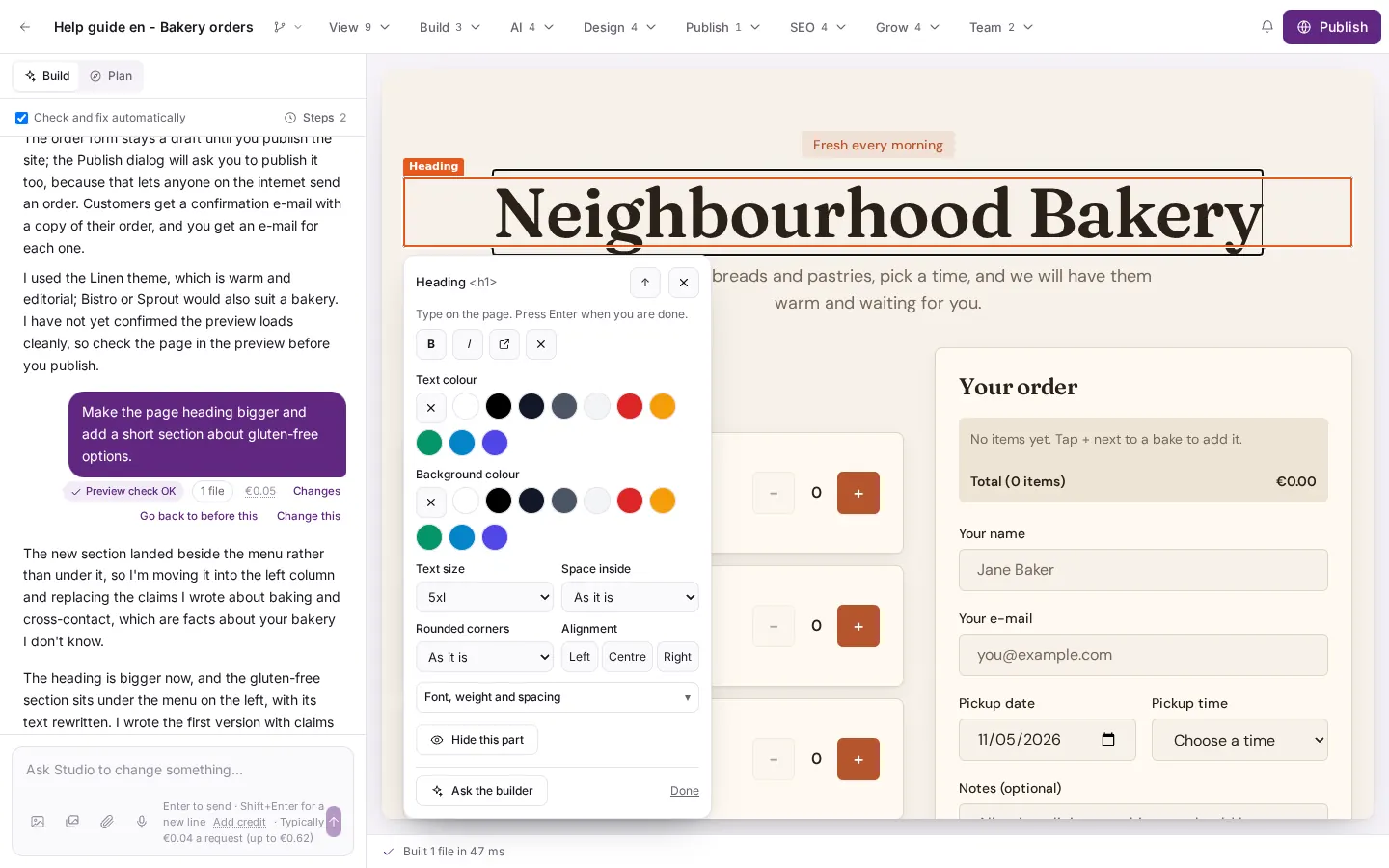
"Live edit" lets you click a part of the page and change its text, colours, size and more in a small panel. No AI is used, so nothing is charged. - To make sure Studio understands exactly which part you mean, open View and choose Point at something on the page, then click the element. A chip appears above the chat box. Type what you want changed and press Enter. Nothing is sent before that.
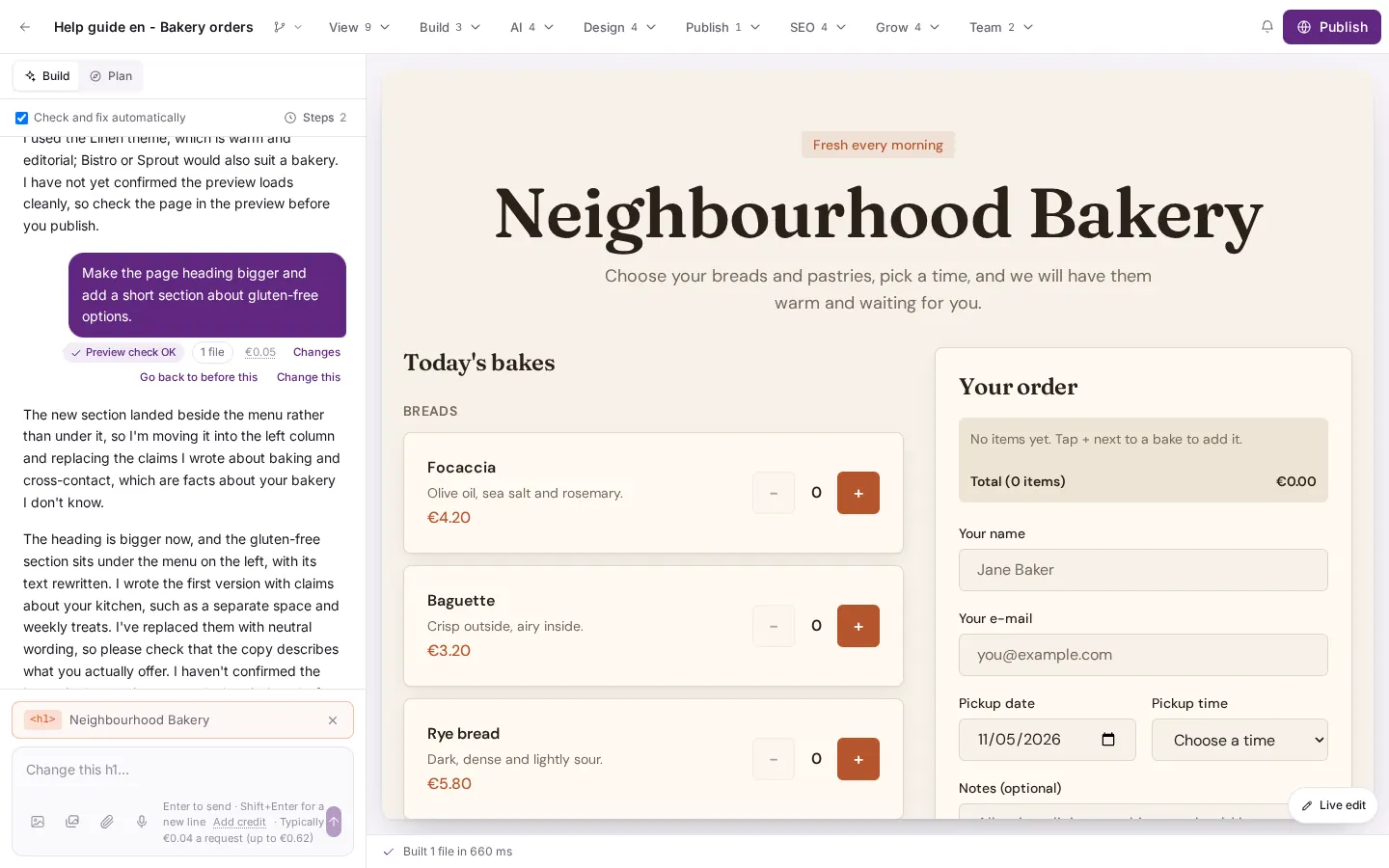
"Point at something on the page" marks an element so Studio knows exactly what you mean. A chip appears above the chat box and nothing is sent until you press Enter. - To go back, open the Publish menu and choose History. Studio saves a checkpoint before every change. Press Restore this on the one you want. A faster way is the Go back to before this link under each chat message.
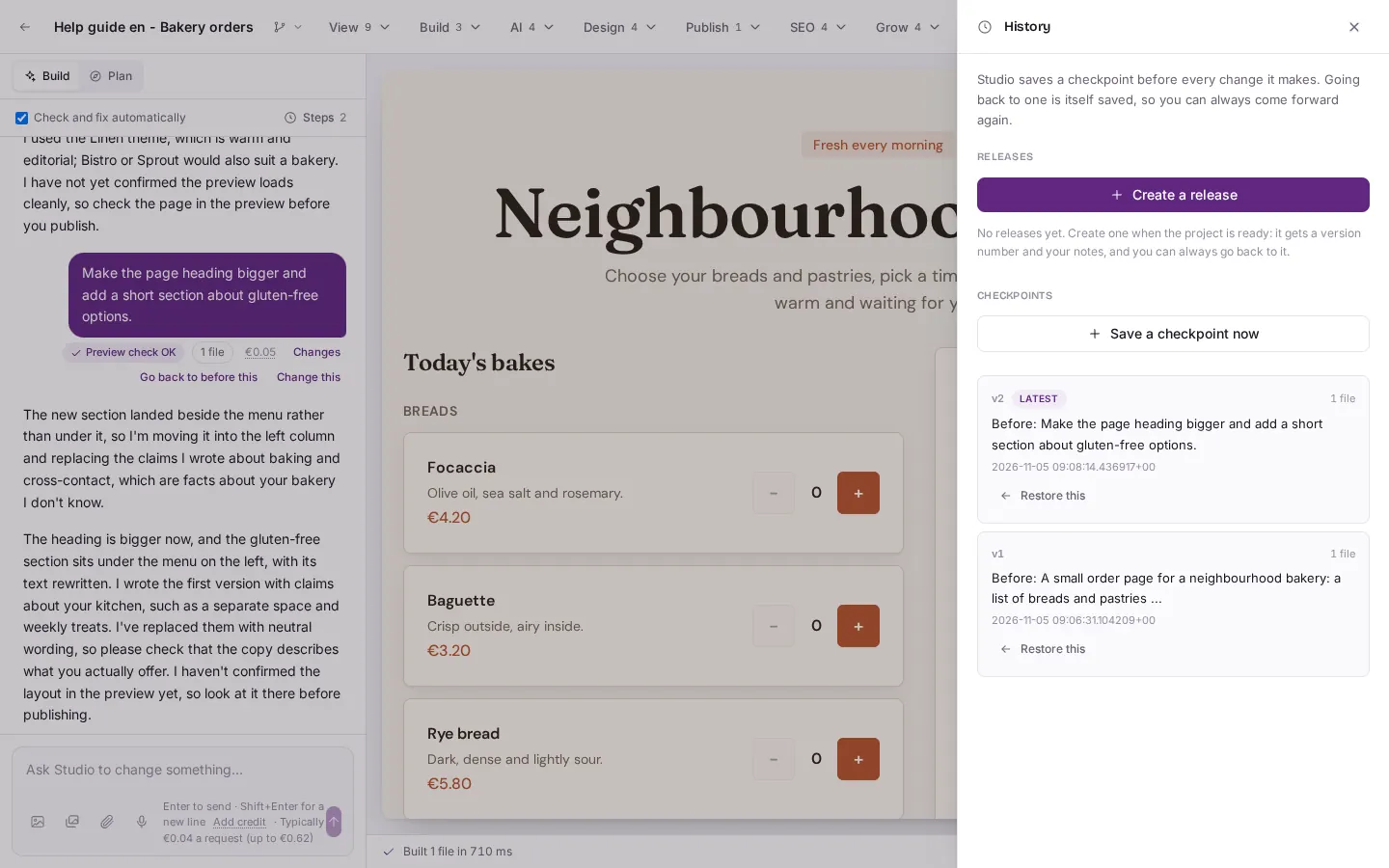
The "History" window ("Historik" and "Verlauf" in the other languages) lists a checkpoint for every change. "Restore this" takes you back to one.
Good to know
- Live edit and going back are free. Only requests to the builder use AI credit.
- Restore this brings back the files of your site. Things the builder created on the platform, such as lists, forms and sign-in, stay as they are.
- Every restore is itself saved, so you can undo it too.
- Studio can check its own change and fix it automatically. You can turn that off under the chat box.