
Try variants and ask people what they think
A variant lets you try another direction without touching your published site, and one link lets people vote and comment.
Before you start
- An app in Studio. To collect feedback you also need a draft, which you make with Share a draft (see Publish your site).
Steps
- Open the publish dialog from the Publish button, find the row Ask people what they think and press Show. Then press Ask for feedback. People you send one link to see your drafts side by side, and they vote and comment without a vault56 account.
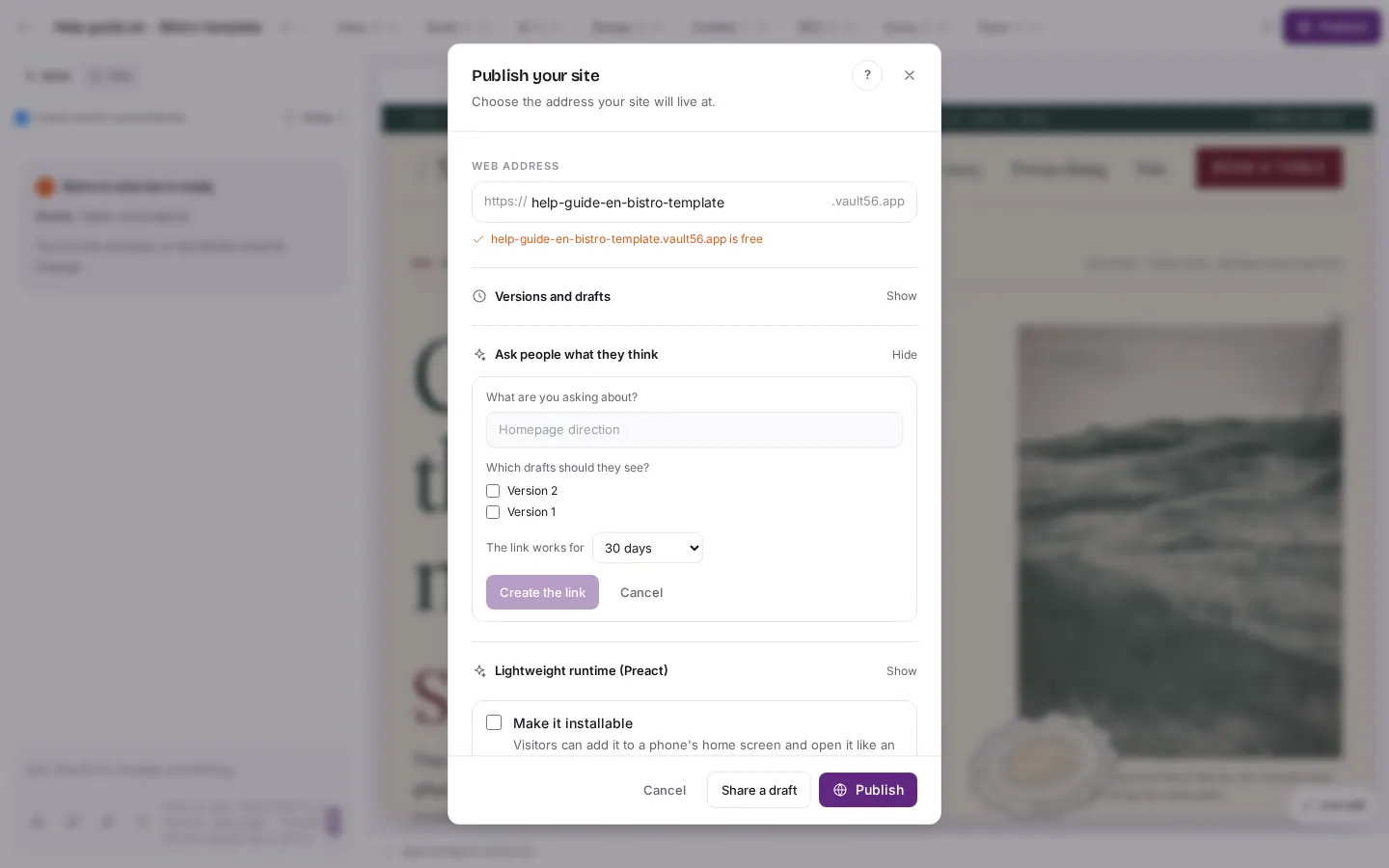
In the publish dialog, open the row "Ask people what they think" with "Show" and press "Ask for feedback". You need a draft first. - Fill in What are you asking about?, for example "Which look do you prefer?". Choose Which drafts should they see? and how long The link works for: one week, 30 days, 90 days or no end date. Press Create the link.
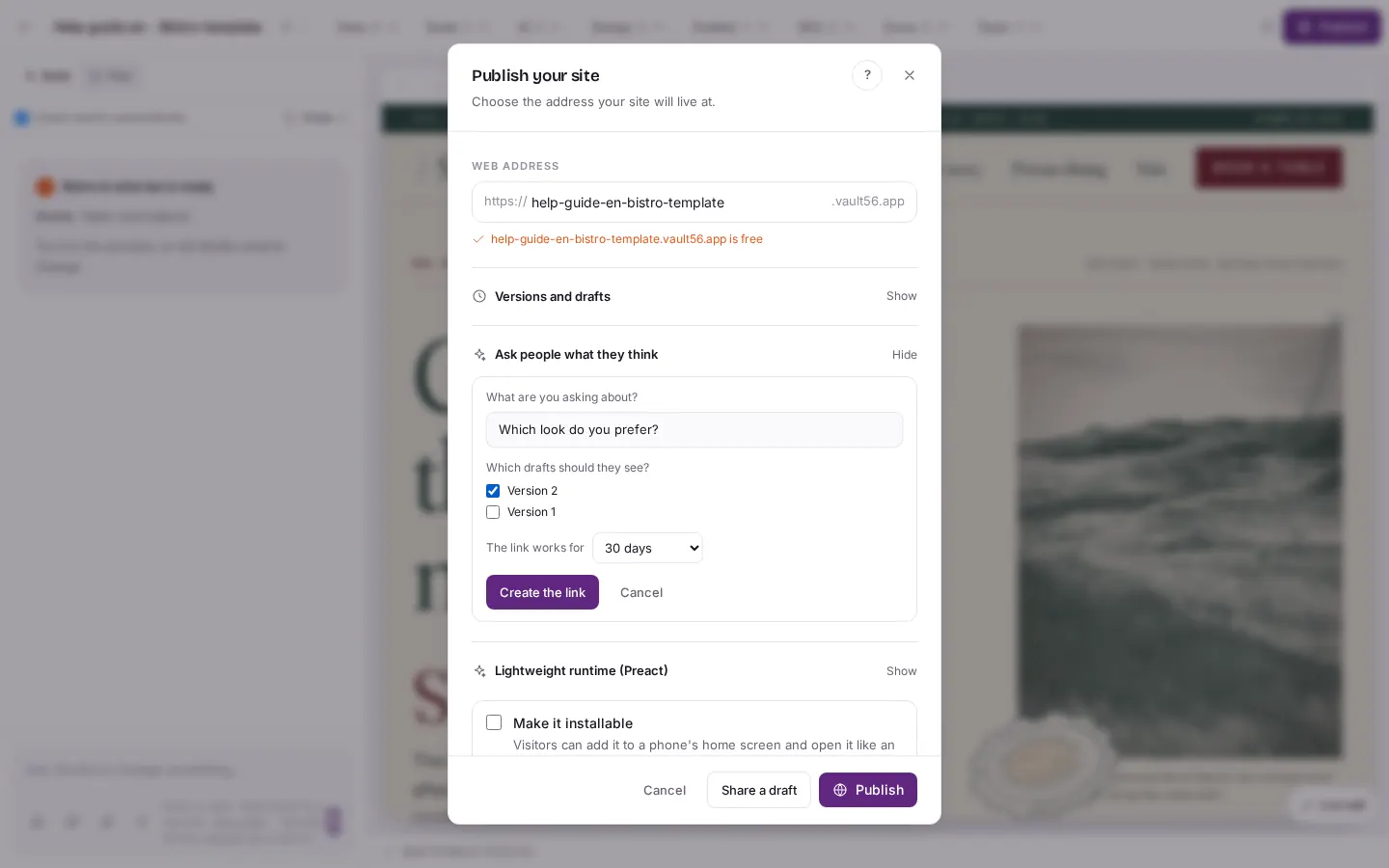
Fill in "What are you asking about?", choose "Which drafts should they see?" and how long "The link works for". Then press "Create the link". - The link appears, with the number of drafts, votes and comments. Copy it and send it. Later you can Stop taking feedback, Change the end date, End the link now or Delete the link.
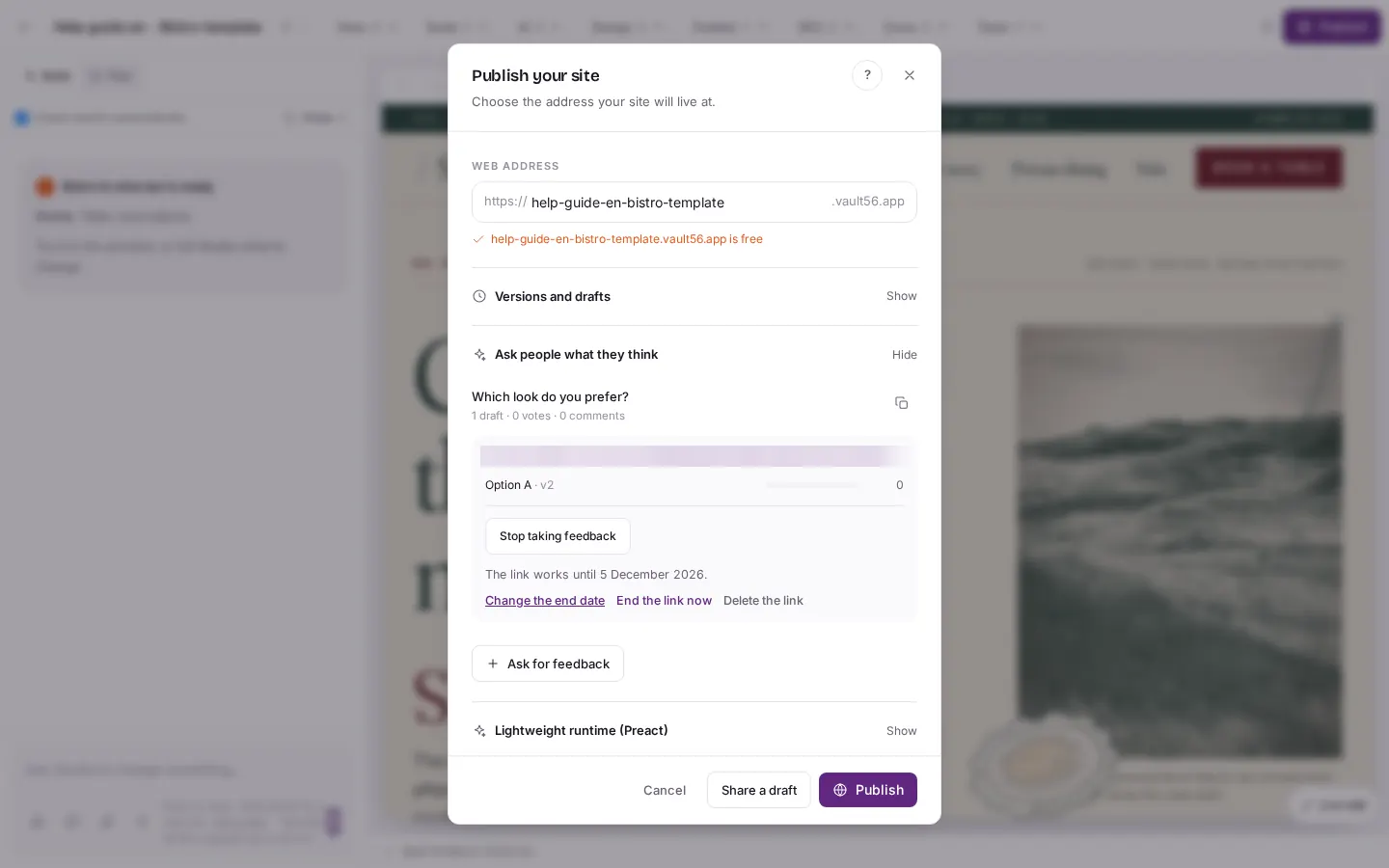
The link appears, with the number of drafts, votes and comments. You can "Stop taking feedback", "Change the end date", "End the link now" or "Delete the link". The link code is hidden in this picture. - To try another direction yourself, click the branch button (Variants) next to the project name. The menu shows Main, which is what your published site is built from, and New variant….
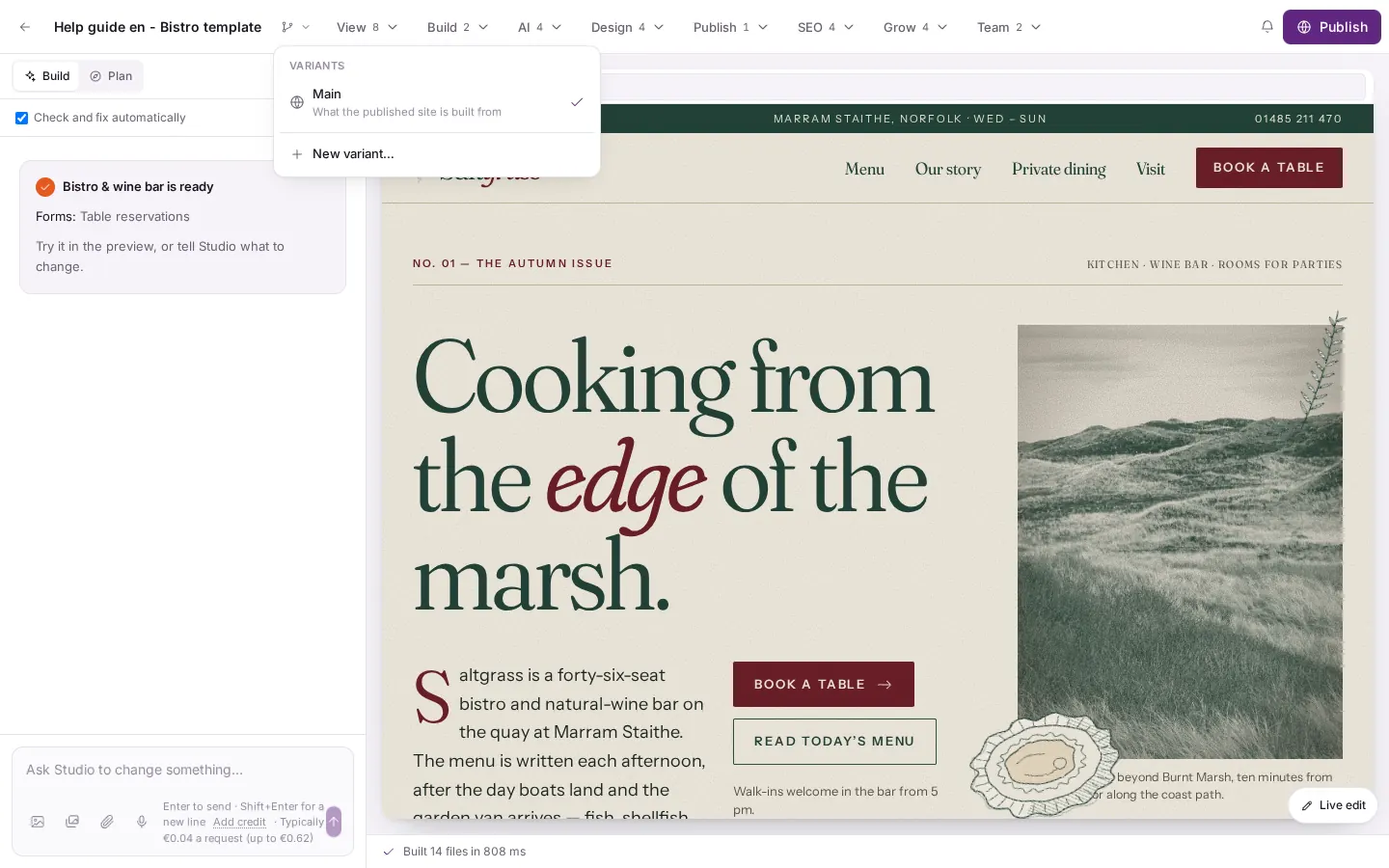
Click the branch button next to the project name. The "VARIANTS" menu shows Main, the version the published site is built from, and "New variant…". - Press New variant…, give the variant a name, such as "Dark theme", and choose where it starts from: Main as it is now, another variant, or a version from History. Press Make variant.
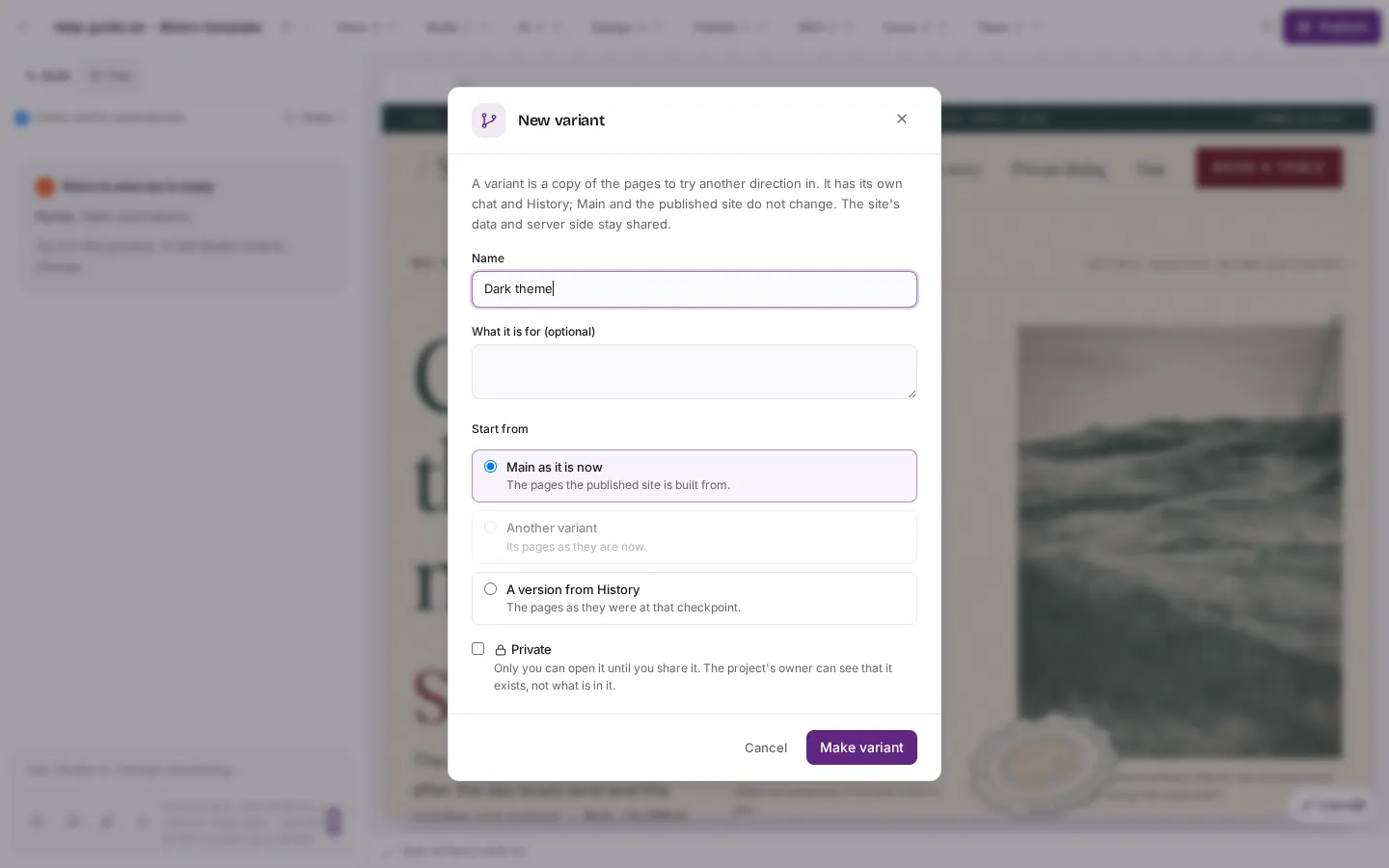
In the "New variant" window you give it a name and choose "Start from". Press "Make variant" when you are ready. - The variant opens with its own chat and History. A purple banner reminds you that the published site is Main. The big button becomes Draft link, so you can share the variant without touching your live site.
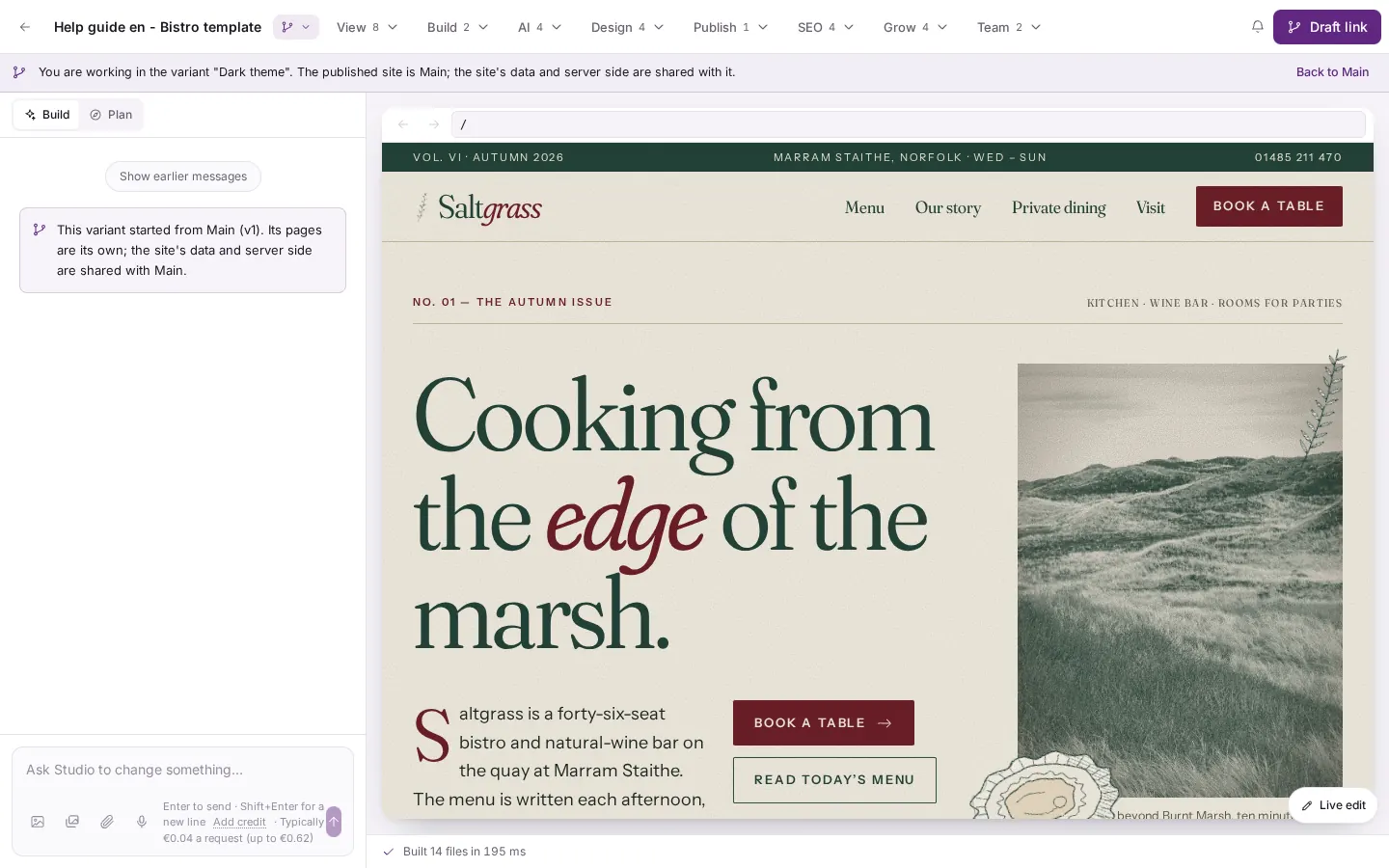
The variant opens with its own chat and its own History. A purple banner reminds you that Main is the published site. The big button now says "Draft link".
Good to know
- Making a variant and asking people for feedback cost no AI credit.
- A feedback link needs at least one draft.
- The default length of a feedback link is 30 days.
- In a variant, the data and the server side of your site are shared with Main. Only the pages and design are separate.
- The feedback link is secret. Anyone who has it can vote, so send it only to the people you want to hear from.