
Change the design: themes, colours and fonts
Change how your site looks with ready-made themes, your own colours and the fonts you like, without using AI credit.
Before you start
- An app in Studio. The window looks a little different depending on how your project was built; the steps say how.
Steps
- Open the Design menu and choose Design: theme, colours and fonts. If your project uses themes, the Themes tab shows about thirty ready-made ones in groups such as calm, warm and bold. The one in use is marked. Press the button of another theme, for example Use Linen, to switch. Switching is free.
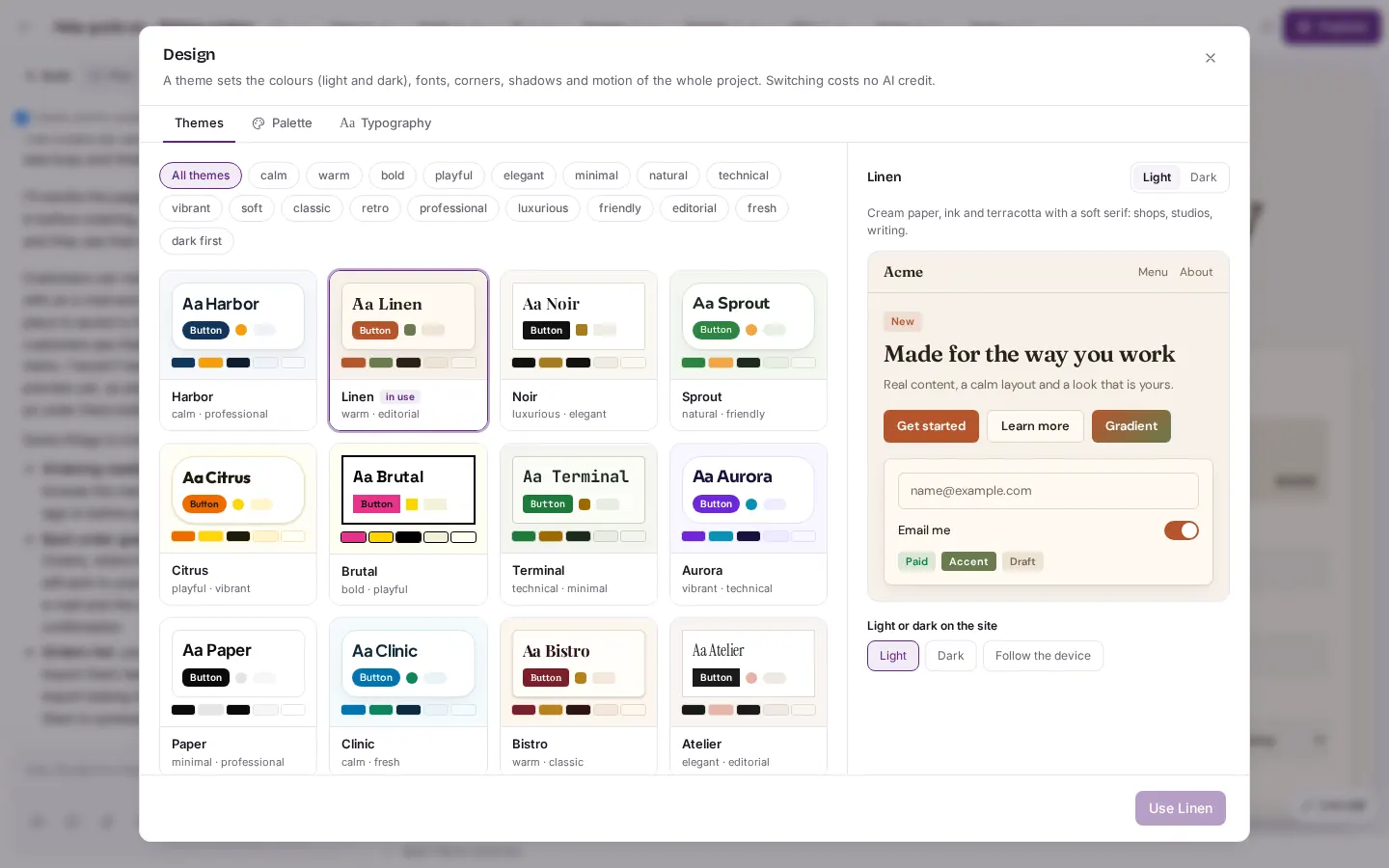
Design menu, then "Design: theme, colours and fonts". The "Themes" tab shows ready-made themes. The one in use is marked "in use". - Open the Palette tab to see every colour of the theme with its hex code. Change a colour and press Save palette. You can also export it, import one, or copy it to another project. In projects built without themes, the colours are on the Colours tab instead.
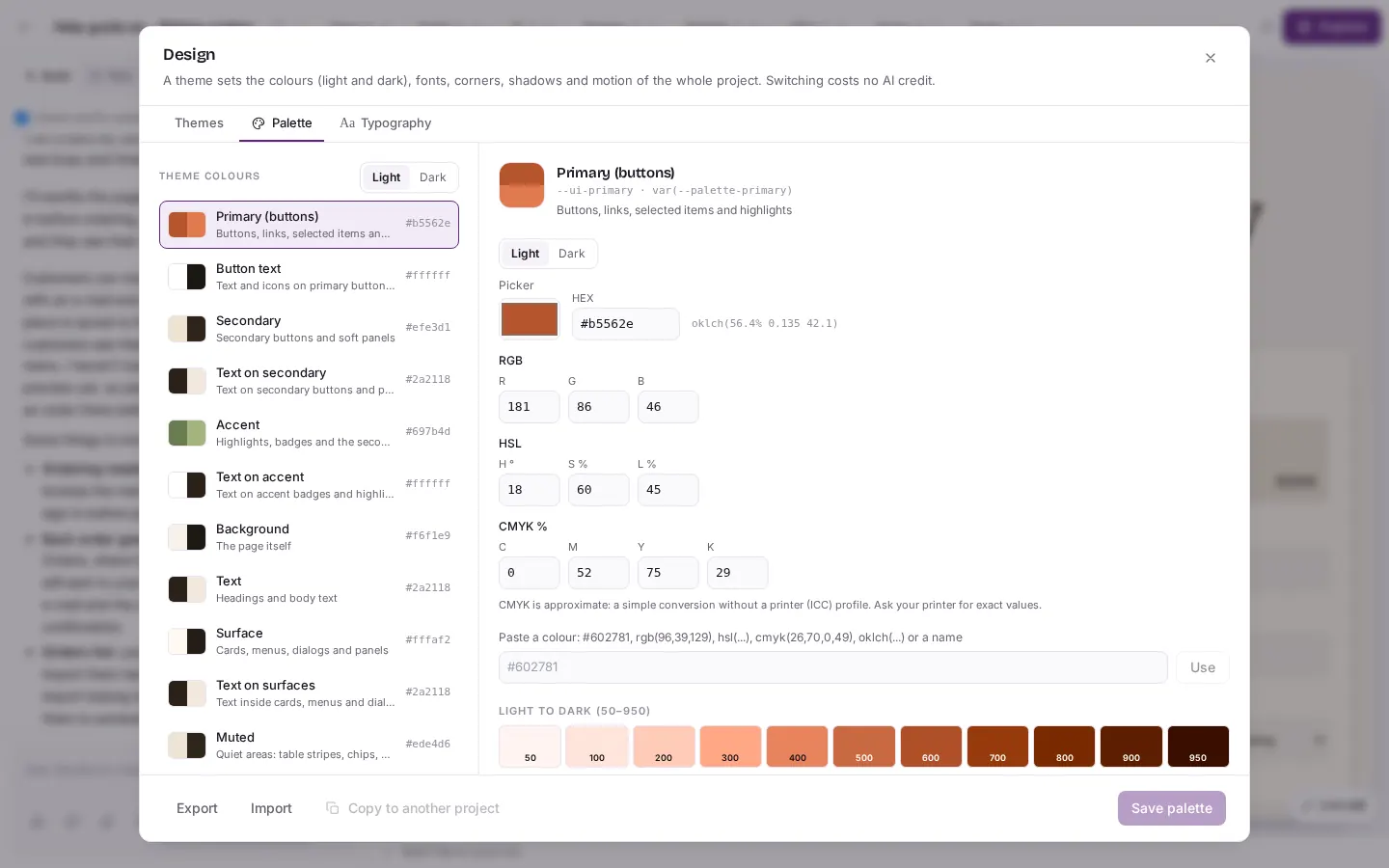
The "Palette" tab lists every colour of the theme with its hex code. You can change them and press "Save palette". - Open the Typography tab to choose the fonts for headings, body text and code. You can also upload a font of your own. Press Save typography. In projects without themes, use the Fonts tab.
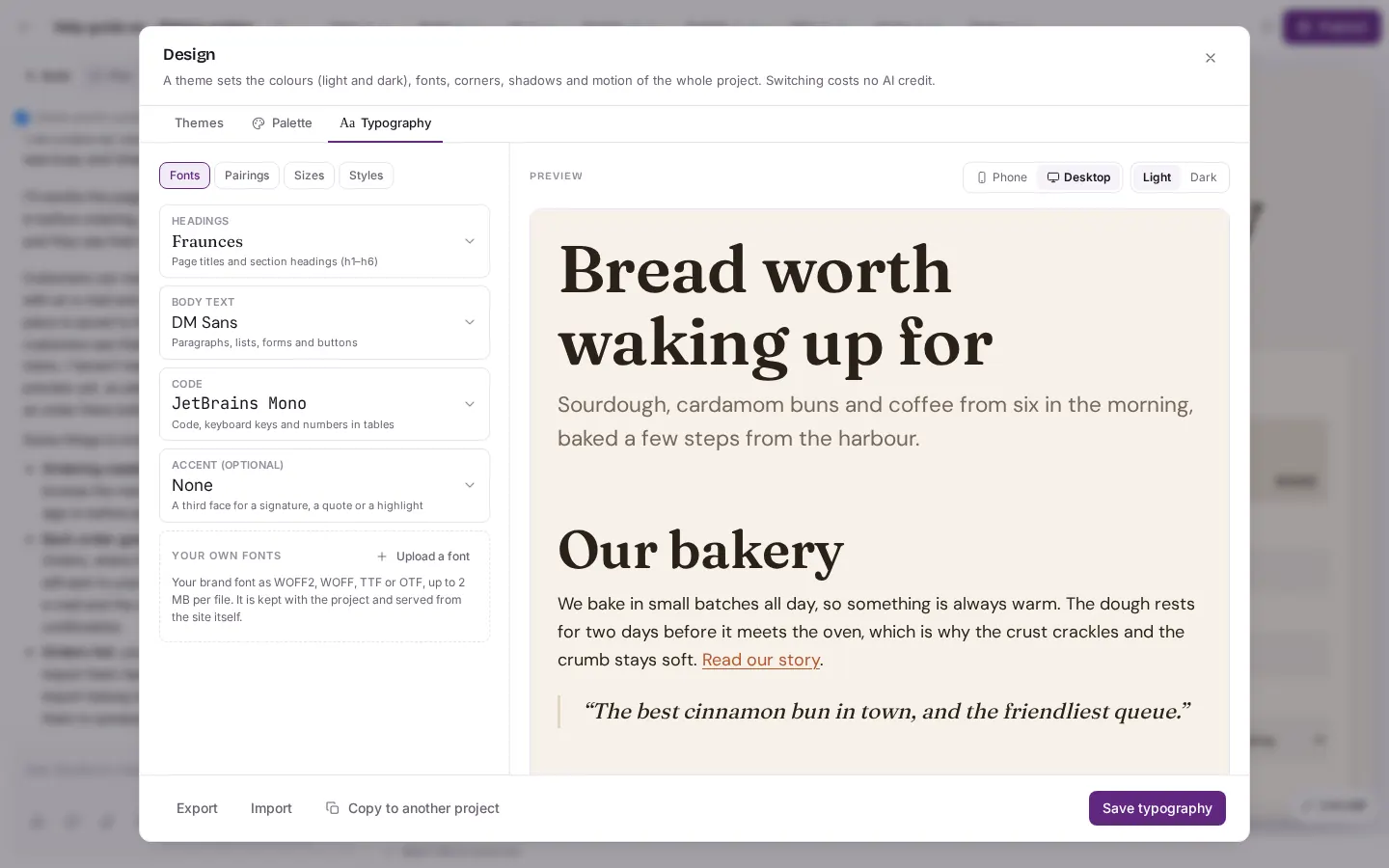
The "Typography" tab sets the fonts for headings, body text and code. Press "Spara typografi" to keep your choice. - Some projects, such as sites made from a template, keep their colours in their own code. Their Design window has two tabs, Colours and Fonts. Pick a colour and use Change it everywhere. Studio changes it in every place where it is used.
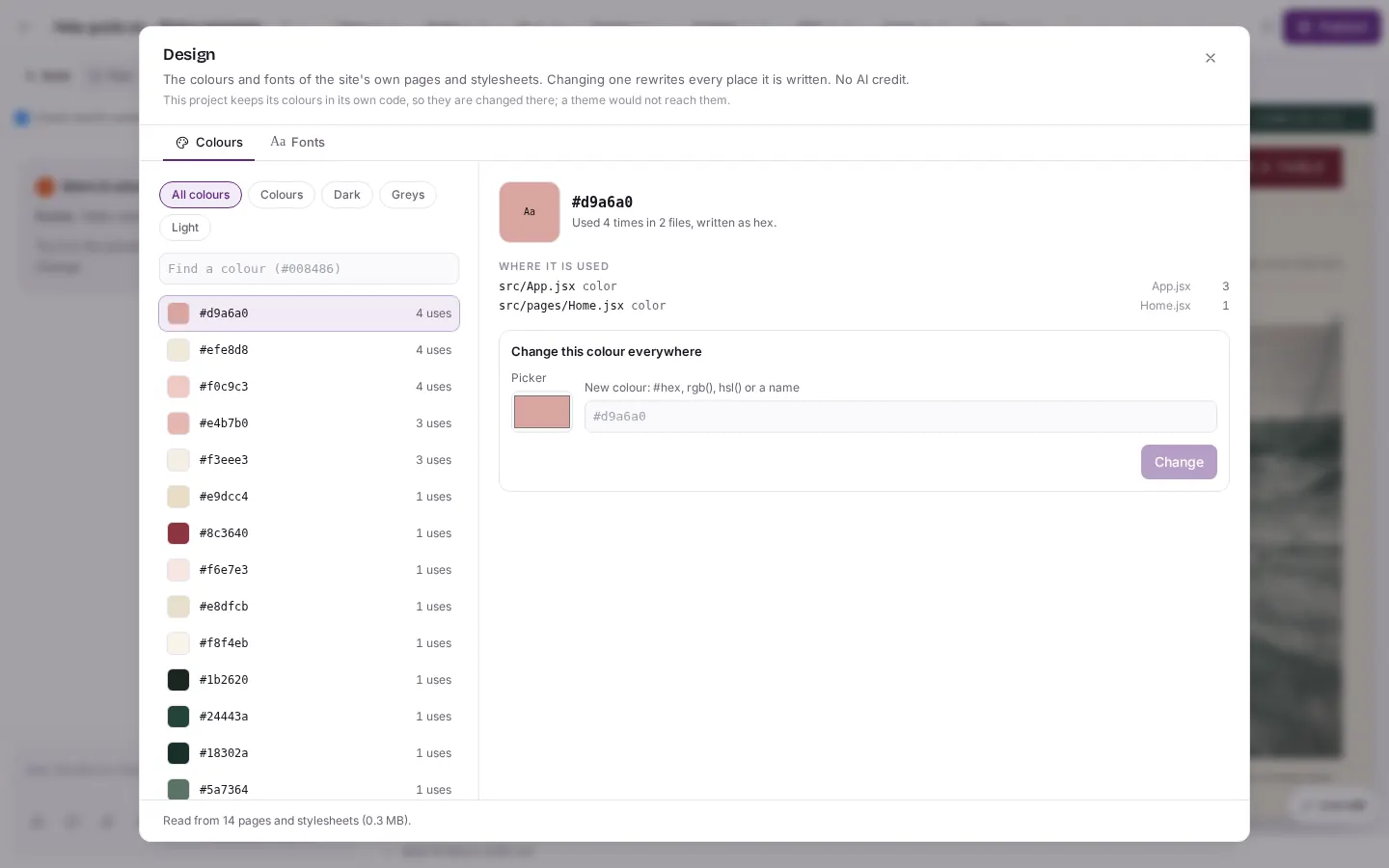
Some projects keep their colours in their own code. Their Design window has the two tabs "Colours" and "Fonts". Pick a colour and use "Change it everywhere". - On the Fonts tab of the same window you see the fonts set in the project's code and can swap them.
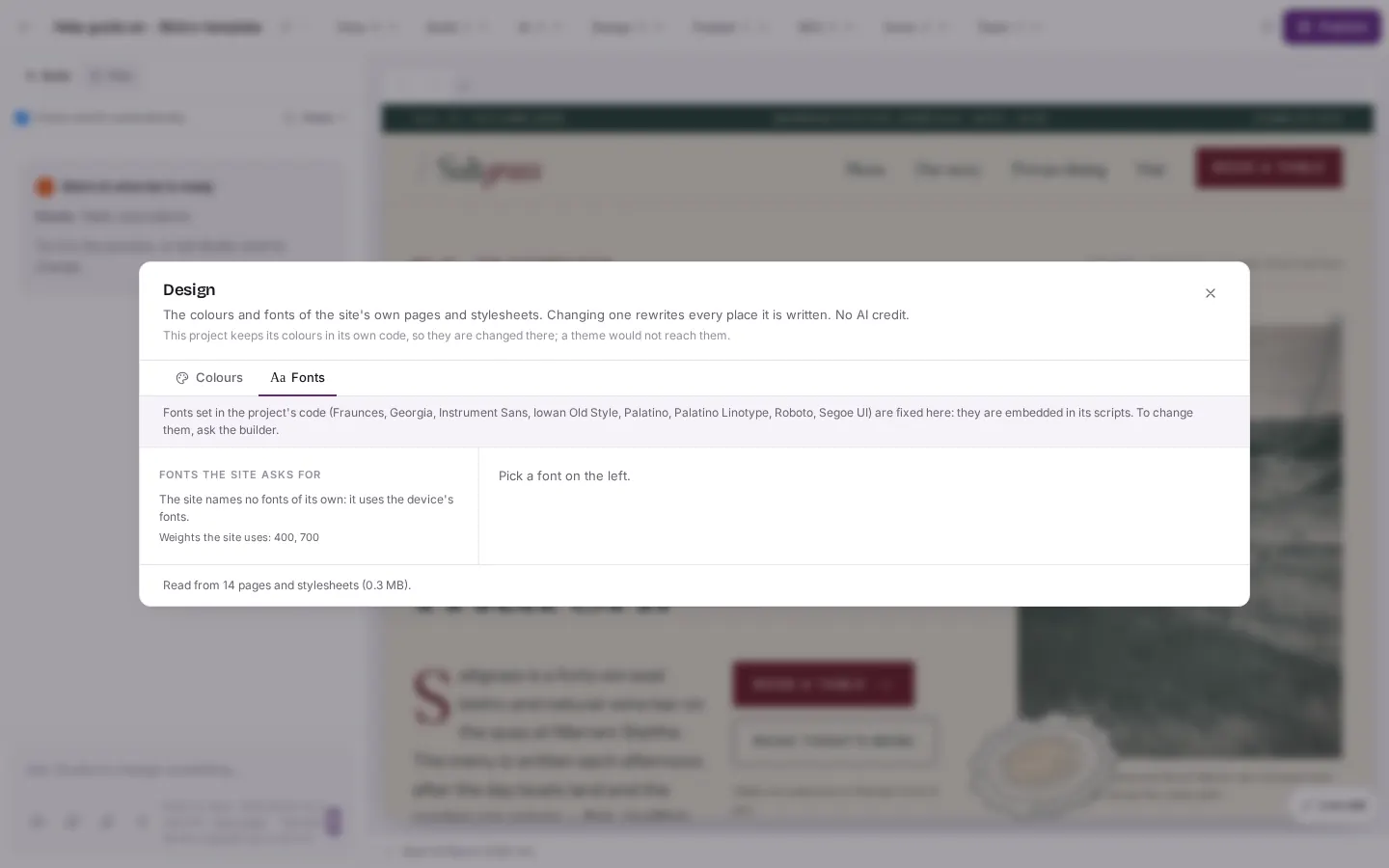
The "Fonts" tab of that window shows the fonts set in the project's code and lets you swap them.
Good to know
- Themes, palette and typography changes are free. The items Polish this page and Design review in the same menu are marked AI and use credit.
- Studio saves a checkpoint before it changes your colours, so you can go back from History.
- The note in the Design window about colours in your own code is shown in English in every language.