
Save data and let people sign in
Ask for a list that saves information, and for sign-up and sign-in, then see and manage both from the menus.
Before you start
- An app in Studio. See Create your first Studio app.
Steps
- In the chat, ask for what you need. For example: "Let customers sign up and sign in with an e-mail and password. Save every order in an Orders list, and show each signed-in customer their own past orders."
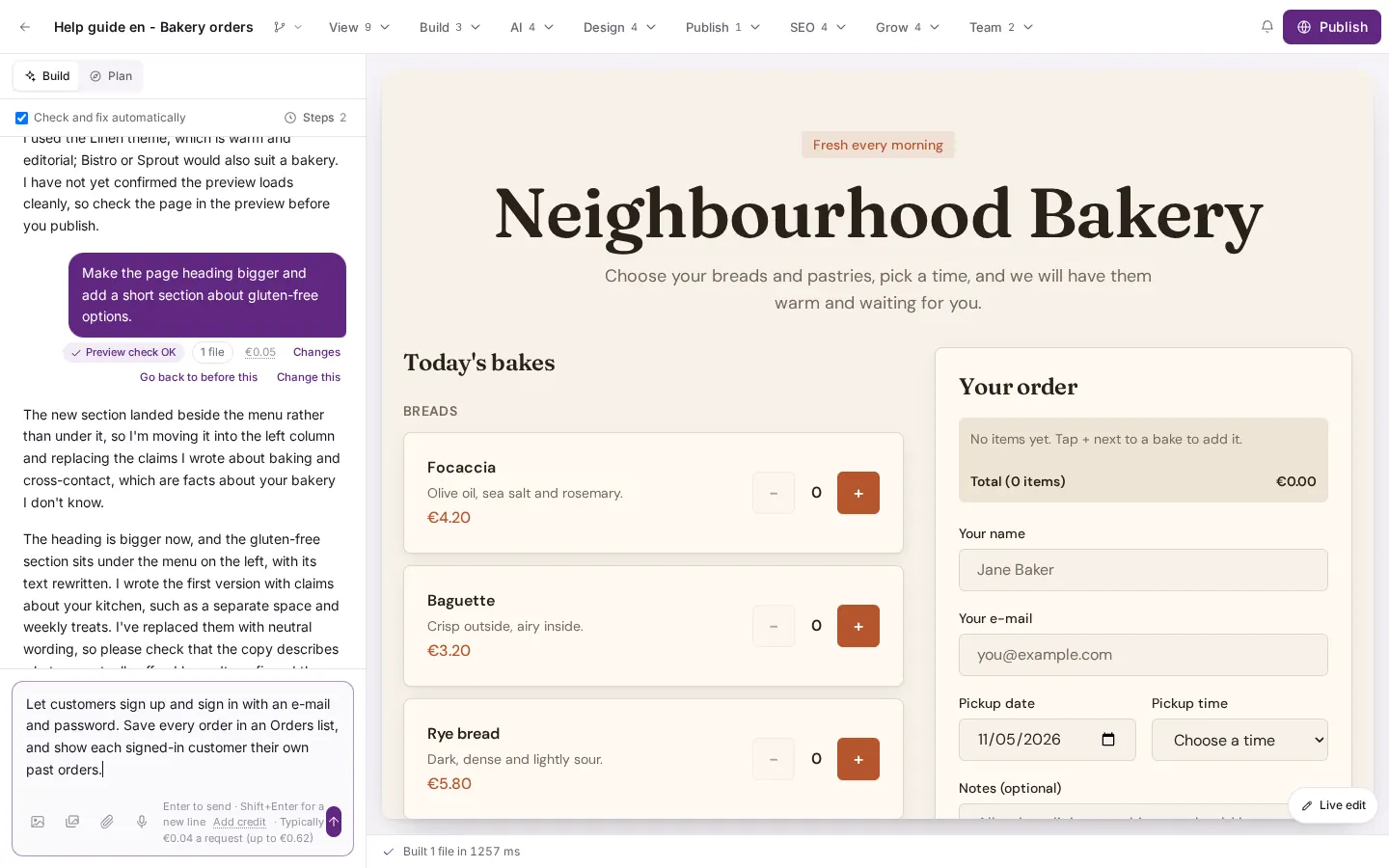
Ask the builder in the chat for what you need, for example sign-up and sign-in and a list that saves orders. - After the builder has worked, the preview shows a sign-in box. Read the chat: it explains what changed and may ask you a question, for example whether to turn on bot protection (Vault56 Shield). Answer it in the chat.
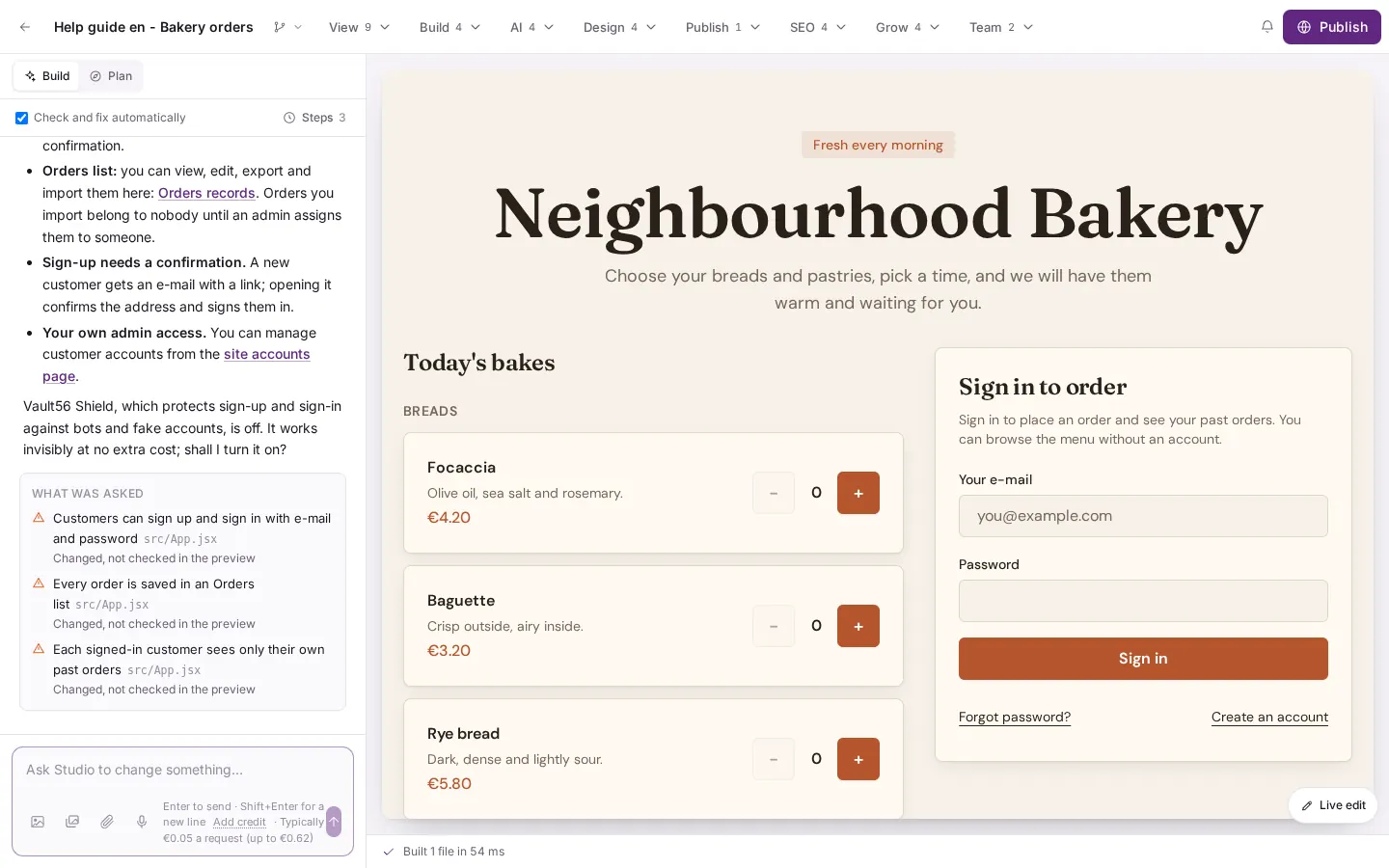
The preview now shows a sign-in box. The chat explains what changed and may ask you a question, for example whether to turn on bot protection. - To see where the data lives, open the Build menu and choose Show the data model: collections and how they connect. Each collection shows who can see its records, for example Everyone or Each person their own.
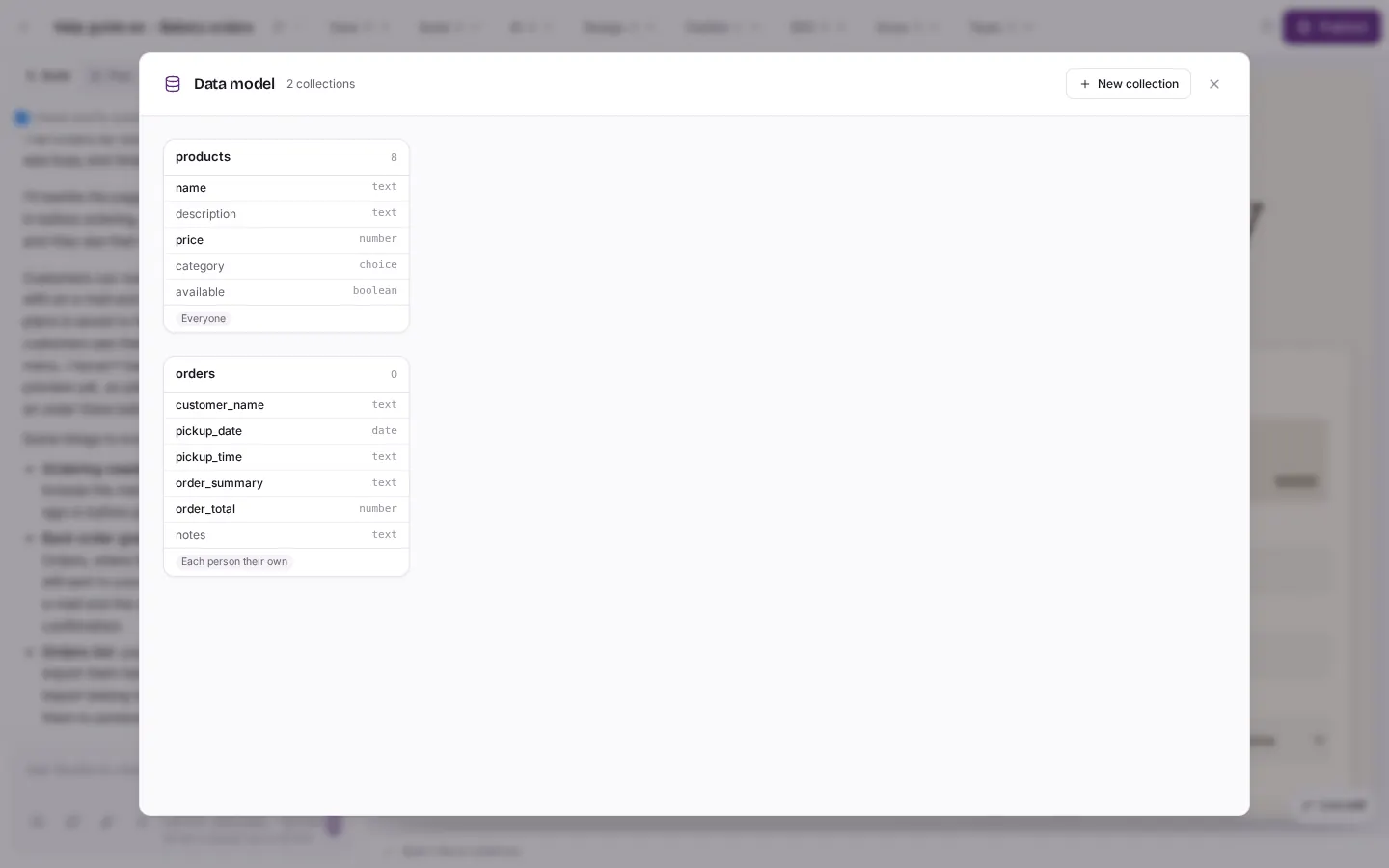
Build menu, then "Show the data model: collections and how they connect". The "Data model" window lists your collections, such as products and orders, and who can see each one. - To manage the people who sign in, open the Build menu and choose Visitor accounts: invite people and manage roles. Here you see the people, groups and roles, and you can invite someone by e-mail.
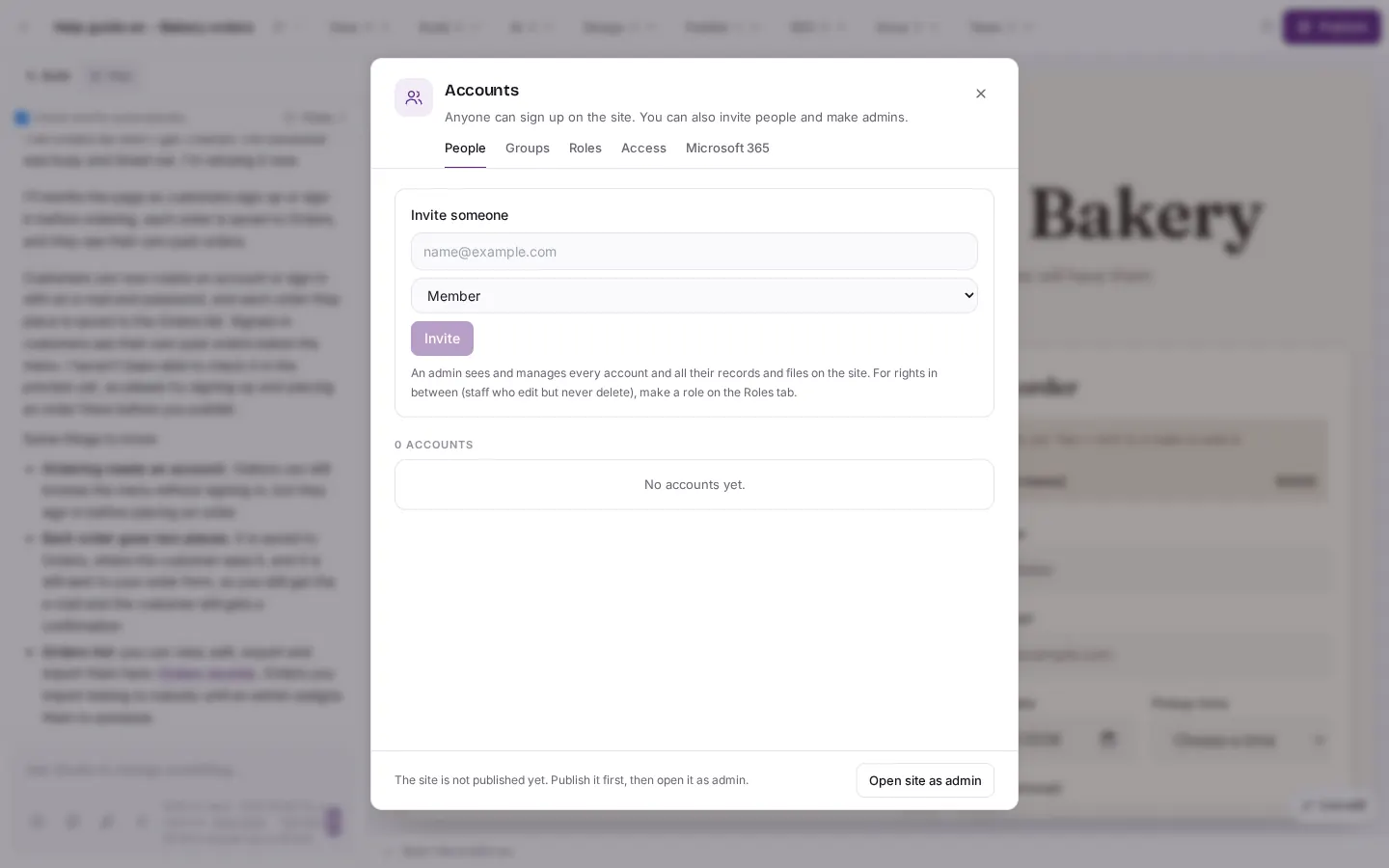
Build menu, then "Visitor accounts: invite people and manage roles". The "Accounts" window has the tabs People, Groups, Roles, Access and Microsoft 365, and a button to invite someone.
Good to know
- Sign-up sends the person an e-mail with a confirmation link.
- Sign-in works on the published site. In the preview you pick a signed-in customer with the switcher above the preview.
- The data model and accounts items appear in the Build menu once the builder has made collections or sign-in.
- The builder decides the names of collections and fields. You can ask it to rename them.
- A package decides how many sites you can publish. If publishing a site with sign-in is refused, see Publish your site and use your own domain.